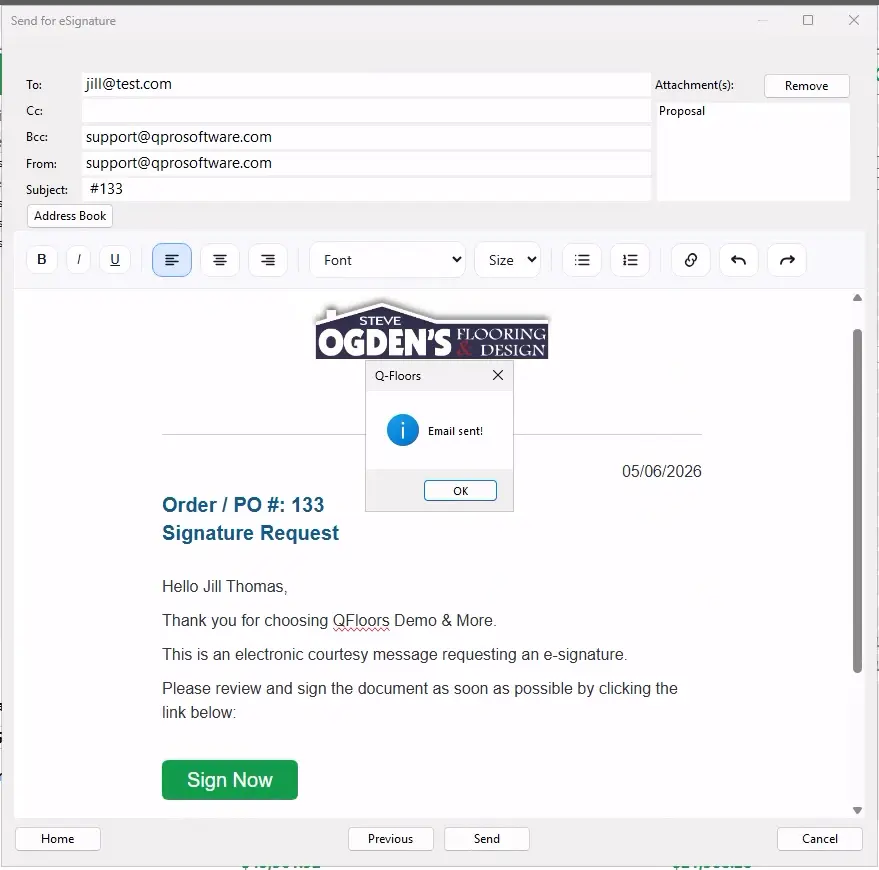
New QFX updates are now available, including e-signatures and enhanced sales order functionality.
You can now move, group, and reorder sales order lines for a more efficient workflow.
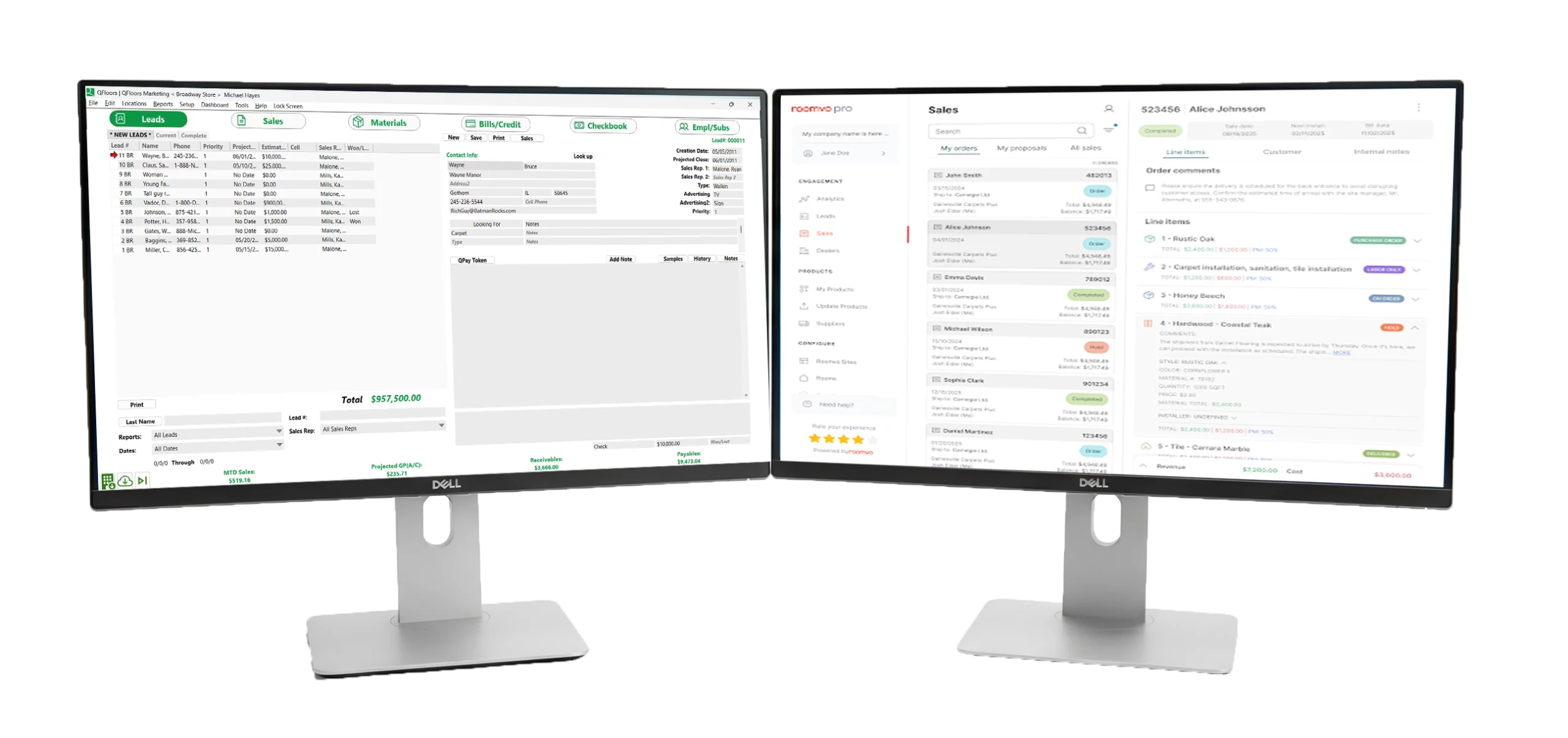
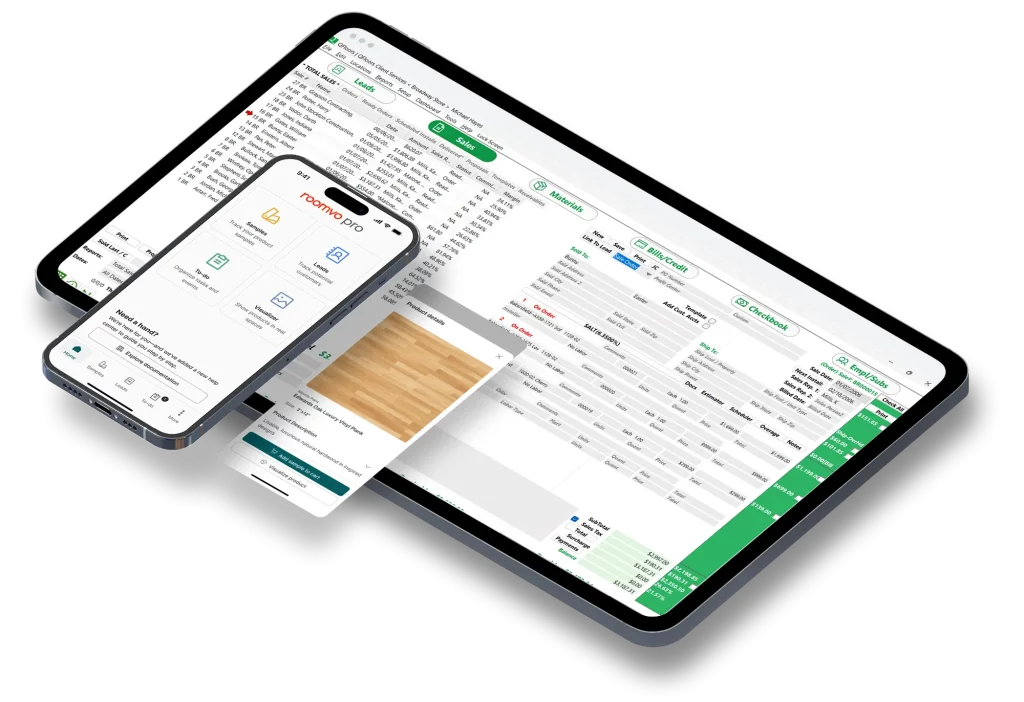
QFX and Roomvo CRM will automatically sync lead and sales data (no downloads required).
Adeeper Measure Square integration is coming soon to streamline product selection and catalog syncing.
Additional enhancements are in development, including address verification, tax automation, Google Maps integration, and upgraded scheduling tools.
Significant and exciting updates continue to happen here at QFloors. In case you haven’t heard – we’ve got a lot of new things to talk about. Some are available already and others are coming soon.
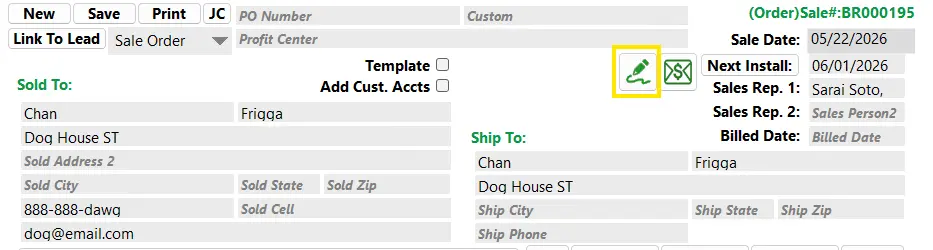
E-Signature Feature
Our new E-signatures tool is now available for all of our QFX customers. We recently hosted an hour-long webinar detailing how this optional add-on will work and what it can do. Here’s a link to the webinar recording, if you’re interested in learning more.
Quite a few customers are already utilizing and loving e-signatures. Note that there is an additional cost for this particular feature to be enabled. It is priced per document, saving you significant money when compared to other similar products such as Docusign. Reach out to our sales team (801-563-0140, option 4, or sales@qprosoftware.com) for pricing and to sign up for this awesome new e-signature feature.
Move & Group Sales Order Lines
QFX also now delivers the ability to move and group sales order lines. Customers have been waiting for this feature for quite some time, and it’s exciting that it’s finally available for all QFX users. Early adopter customers helped us test this for months, and their responses and feedback have been very positive. The QFX update featuring this (and other new enhancements) was released to all customers June 3-5, 2026.
This QNews article walks you through getting started with e-signatures and sales order line grouping and moving, with helpful steps and resources included.
QFloors Leads Screen & Roomvo PRO CRM
Here’s another improvement that will be released soon (currently in testing). Our QFloors Leads screen and Roomvo PRO CRM screen will now automatically share the same data, eliminating the need for downloads. If you enter a sales order or lead in the QFloors Leads screen, it will automatically appear in Roomvo PRO CRM. Likewise, anything entered in Roomvo PRO CRM will show up in QFloors.
As a reminder, the Roomvo PRO CRM mobile app is free for dealers. You simply have to request it. We expect this update to be released by July 2026.
Measure Square Integration
We’re getting really close to having a much deeper integration with Measure Square estimators and QFX. All programming is finished and we’re working with Measure Square to fix the last few bugs.
The new integration will allow Measure Square (M2) to connect directly to your QFloors product catalog. Products will be pulled directly from QFloors while using M2, and when brought back into QFloors, they will automatically match and populate.
We’re targeting a July 2026 release and look forward to sharing more details soon.
And More is Coming
These are just a few of the new features that are either now available or coming soon in QFX. We also have several additional enhancements in development, with expected releases around Q4 of this year (development timelines may continue to evolve).
A few of these include:
Address verification
Automatic sales tax selection by address
Google maps integration
Upgraded installer view
Upgraded labor scheduling
New replacement for QReporter
We continue to work hard to bring these new updates to you as quickly as possible. In a recent webinar, Pawel expressed his commitment to continue with an aggressive development schedule. We’re excited to see that momentum taking shape in these updates.
Share this article
Training
Getting the Most Out of Recent QFX Features
By Kristy Hayek | Director of Client Services
Key Takeaways:
Learn how to use QFX’s new E-Signature feature to send, track, and store signed proposals directly within the system.
See how Grouping & Line Moving tools can help you organize, reorder, and manage sales order lines more efficiently.
Understand how these new tools work alongside existing sales order functions to simplify everyday workflows.
Access training videos and knowledge base resources to help you get started quickly.
Exciting new features are now available in QFX, including E-Signatures, Grouping, and Line Moving. To help you understand how they work and how to use them in your day-to-day workflow, we’ve created knowledge base articles, training videos, and webinars.
E-Signatures
First up is E-Signatures, our new add-on feature that allows you to send proposals to your customers for approval, along with your own terms and conditions.
How it Works:
Customers can:
View the proposal
Read your terms and conditions
Sign the document electronically
Once signed, the document is automatically sent back to you and stored in the Document Manager. No copying and pasting required. You’ll also receive an email notification when the signature is complete.
Things to Note:
You can choose from four proposal templates.
Terms and conditions are fully customizable.
Formatting tools include spell check and font styling options.
This feature uses the new QFX reporting tool (not QReporter), so template options are currently limited.
Another exciting feature is Grouping and Moving Line Items.
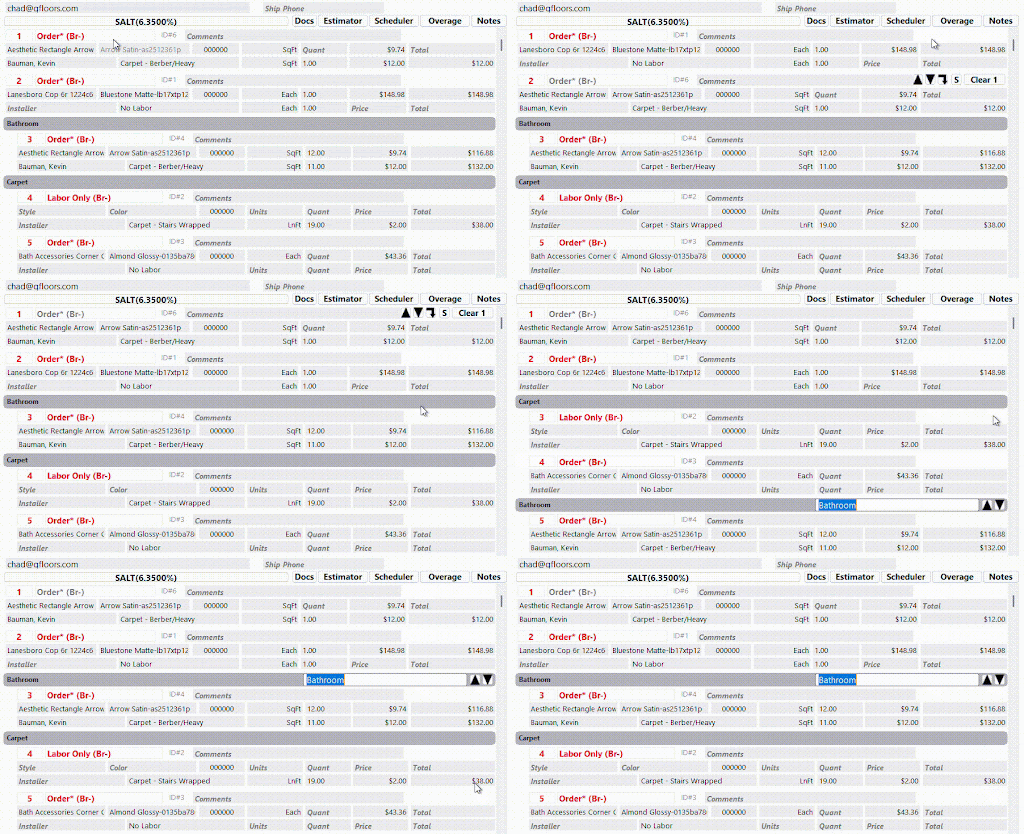
You can now organize line items by grouping and moving them within the sales order. So if you forget something, it no longer has to stay at the bottom of the order.
Grouping Line Items
When you click on a sales order line, you will now see new buttons that appear next to the “Clear” button.
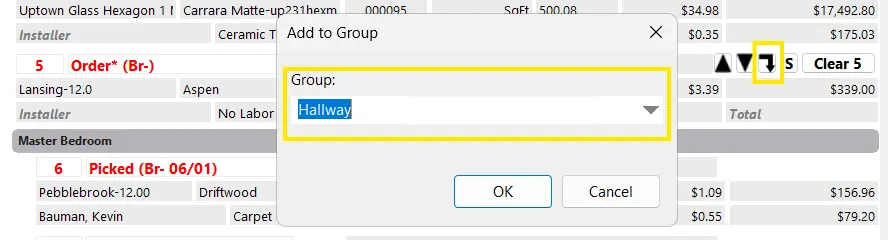
By pressing this indent button on the right side, you can add this line item to either an existing group or create and bring it into a new group.
When you click on a sales order line, you will now see new buttons that appear next to the “Clear” button.
By pressing the indent button on the right side, you can add the line item to either an existing group or create and bring it into a new group.
You can create a group name, such as:
Kitchen
Bedrooms
Living room
Moving Line Items
You’ll also notice new up and down arrows at the right side of the line, along with the buttons that have already been there for line splitting and clearing.
The Line Moving feature can be used on its own by clicking the up and down arrows to reorganize line items or use it as an insert line option for a forgotten item.
A common workflow:
Add a new item at the bottom of the sale
Use the up arrow to move the line to where you want
Things to Note:
Line items remain in numerical order.
Each line has a unique ID to maintain system accuracy in other screens (ie: the Materials screen, etc.).
These tools also work alongside existing split and clear line functions.
You can also move blank lines to the bottom of the sales order. This prevents you from having a bunch of blank lines in between everything.
Getting Started:
Here are a few more training resources to help you get started with Moving and Grouping Lines:
If you’d like additional guidance, our client services team is always here to answer any questions you have. Just give us a call, and we’d be happy to help.
How to Increase Flooring Sales: 7 Proven Strategies for Flooring Dealers
By Colten Gines | Director of Sales
If you’re wondering how to increase flooring sales, the answer isn’t always more traffic, lower prices, or longer store hours.
Many flooring dealers already have enough opportunities coming through the door. The bigger challenge is converting more of those opportunities into completed projects.
The most successful flooring retailers increase sales by improving their sales process, following up consistently, and keeping customers engaged throughout the buying journey.
Here are seven proven ways to increase flooring sales without adding more staff or dramatically increasing your marketing budget.
One of the most common reasons flooring sales are lost is the lack of a defined process.
The customer visits the showroom, asks questions, looks at samples, receives a quote, and leaves. What happens next often depends entirely on whether they decide to come back on their own.
Without a structured process, follow-up becomes inconsistent, opportunities fall through the cracks, and sales performance becomes difficult to improve.
That’s why it’s critical to document a uniform sales process so that your customers consistently receive the experience and attention they deserve.
Action Item: Document the exact steps every customer should experience, from initial showroom visit to installation. Then train every RSA to follow that process consistently.
2. Follow Up Within 24–48 Hours on Every Flooring Quote
Many flooring projects don’t disappear because the customer lost interest.
They disappear because the conversation stopped.
Customers are busy. Flooring projects compete with work schedules, family responsibilities, vacations, and countless other priorities. Even highly interested buyers can become distracted.
Following up within 24 to 48 hours after a showroom visit or quote makes a big difference in whether a customer responds.
You’re not reaching out to be aggressive or pushy. You’re just making sure you stay on customers’ radars while they’re still thinking things over.
Action Item: Audit your last 20 quotes. How many customers received a follow-up within 48 hours? Set a goal that 100% of quotes receive a follow-up call, text, or email within two business days.
3. Always Leave Customers With a Clear Next Step
Every customer interaction should end with a specific next step. (And “just let me know” is NOT an actionable step.)
Here are some good examples:
Scheduling an in-home measure
Reviewing a proposal
Finalizing product selections
Following up after a room visualization
Setting a date for the next conversation
When customers leave without a clear next step, projects often stall. When they know exactly what happens next, momentum continues.
Action Item: Require every customer interaction to end with a scheduled next step. Before a customer leaves, ask: “What’s the best next step for us to keep this project moving?”
4. Track Every Active Customer and Quote in One Place
When business picks up, it can get increasingly difficult for RSAs to remember every customer, quote, and follow-up task.
As a result, the customers who call the most tend to get the most attention, while quieter opportunities get missed.
When you can clearly see all your active projects in a CRM system, it becomes much easier to know who to follow up with, which deals are stalling, and where to focus your time.
Remember this: the more visibility you have into your pipeline, the more consistent your sales start to become.
Action Item: Create a system for tracking every active opportunity. At any moment, your team should be able to answer: Which customers are waiting on quotes? Which need follow-up? Which are ready to close?
5. Pay Attention to Customer Activity and Interest Signals
Not every lead in your flooring store is equally interested.
When customers revisit a quote, come back to a visualization tool, or keep looking at products on your website, they’re basically showing they’re still engaged.
Those signals are a great way for RSAs to know which customers to follow up with first.
Instead of guessing where prospects are in the buyer journey, sales associates can focus on the people who are actually getting closer to making a decision.
Action Item: Identify the engagement signals available in your sales process (website activity, room visualizations, quote views, appointment requests, etc.) and prioritize follow-up with customers who are actively interacting with your business.
6. Make Consistent Follow-Up the Standard, Not the Exception
Many dealers assume their top sales performers succeed because they’re naturally charismatic.
In reality, high-performing sales associates are often distinguished by something much simpler: consistency.
They follow the same process for every customer.
They follow up on every quote.
They document every opportunity.
They know exactly where each project stands.
Consistency creates predictable results, which makes it easier to improve close rates across the entire team.
Action Item: Review your top-performing sales associates’ habits. What are they doing consistently that others aren’t? Build those behaviors intoa documented process the entire team can follow.
7. Use a System That Keeps Everyone on the Same Page
Individual effort can get you pretty far when things are slow.
But once the showroom gets busy, it gets harder to keep up. With more customers coming in, more quotes out, more follow-ups to remember, there are much more chances for things to slip through the cracks.
Without a solid process in place, growth starts to feel messy instead of manageable.
How do you know if the system you’re using is working? A good sales process helps flooring dealers:
Close more of the quotes they’re already working on
Stay on top of follow-ups
Stop deals from falling through the cracks
Get a clearer picture of what’s actually coming in
Keep the team on the same page
There’s always room for improvement. But remember, the dealers who grow the most aren’t always the ones working the hardest. They’re the ones who’ve got an effective system that helps them stay organized when things get busy.
Action Item: Choose one part of your sales process that currently depends on memory or manual tracking and create a repeatable system around it. Small improvements often create significant long-term gains.
BONUS: How Roomvo PRO CRM and QFloors Keep Your Sales Process Organized
Roomvo PRO CRM helps flooring dealers put these best practices into action.
By creating trackable customer engagement through room visualizations, RSAs gain better visibility into active projects, making it easier to prioritize follow-ups and keep opportunities moving.
For QFloors users, leads from Roomvo PRO can already be downloaded directly into QFloors for seamless follow-up and quoting. A deeper integration between Roomvo PRO CRM and the QFloors Leads screen is also coming soon, which will allow updates in either system to sync automatically and keep opportunity data aligned across platforms.
Roomvo PRO CRM is included for all QFloors users at no additional cost, making it an easy way to add more structure and visibility to your current sales process.
If you’d like to learn more about how Roomvo PRO CRM can support your sales workflow now and in the future, email us at sales@qprosoftware.com.
Share this article
For new users
New Customers: The Secret Sauce for Getting the Most Out of QFloors
By Jim Love | Director of Client Success
Key Takeaways:
Start using QFloors/QFX early and often.
Work closely with your Implementation Team.
Ask questions when you need help.
Confidence comes through practice.
Have you ever seen a game where there are only seconds left, and suddenly everyone has to lock in, communicate, and execute to win?
For some customers, beginning the QFloors/QFX implementation and training process can feel very similar. There can be excitement, pressure, uncertainty, and a feeling that there is a lot to learn in a short amount of time. One question I often get from new customers is: What can we do to make implementation easier?I usually tell them that there are two things that can help them get more comfortable and confident with their new software.
Tip #1: Get Involved Early
The customers who typically have the smoothest implementations and best long term success are those who jump in with both feet and actively use the software from the startof training.
There’s no substitute for hands-on experience. Learning QFloors/QFX is a lot like learning to drive for the first time. You can watch videos, observe someone else, and talk through it all day, but real confidence only comes when you get behind the wheel yourself.
If you’re not sure where to start, here are a few simple things you can try:
Enter leads
Create sales orders
Get familiar with B2B
Explore key workflows
Navigate the screens your team will use daily
Try out different processes and steps
Create test or “dummy” orders to practice
Don’t forget that if you get stuck, you can always reach out to our client services team. We’re happy to walk you through things and point you to the right resources.
Tip #2: Trust the Process and Work With Your Implementation Team
Your Implementation and Training teams are here to help you get set up quickly and successfully. They take the time to understand your business and are focused on making your transition into QFloors as smooth and efficient as possible.
That said, implementation works best as a two-way partnership. The more engaged and responsive both sides are, the faster and smoother the process will be.
For the best onboarding experience, we recommend:
Keeping open communication with your Implementation Team
Asking questions whenever something isn’t clear
Sharing detailed information about your current processes
Staying actively involved throughout training
Using the client portal to communicate and complete tasks
Responding to tasks and requests in a timely manner
Trusting the process and staying patient as things are set up and refined
Confidence Comes Through Repetition
If you focus on these simple habits, the QFloors screens that once felt unfamiliar will start to feel routine, and the workflows that once seemed complicated will begin to make sense. The more you use the system in real day-to-day situations and work with our trainers, the faster it becomes a natural part of how you run your business.
The key is simple: the sooner you start using QFloors/QFX consistently, the sooner you’ll unlock what it can really do for your business.If you’re a new customer and still feel like you haven’t fully gotten up and running, even after a few months, that’s okay! It’s not too late! Our client services team is here to help you get back on track. Just reach out, and we’ll work with you to build a plan to move forward so you can get the most out of the system.
If you get hung up, have questions, or run into something you do not understand, please call our Client Services Team at 801-563-0140, Option 2.
Here’s to the future!
Share this article
Events
Go Beyond the Basics with These Trainings
By Chris Ogden | Communications Specialist
Key Takeaways:
We’re hosting 1-Day Intermediate Trainings for users ready to go beyond the basics of QFX/QFloors.
Learn best practices, time-saving shortcuts, and efficient workflows.
Explore new features, enhancements, and tools that can help you get more from your software.
Register for an upcoming training in Madison, WI or Cleveland, OH.
1-Day Intermediate Trainings
If you’d like to level up your efficiency and get even more value from your QFX system, you’re invited to attend one of our upcoming 1-Day Intermediate Trainings. There you’ll:
Learn best practices
Explore new features & enhancements
Discover time-saving shortcuts
These trainings are coming up quickly, so register today!
The training is $200 per person (excluding travel expenses).
Future Intermediate Trainings
We also hope to host trainings in conjunction with the following tradeshows:
QFloors co-founder Trent Ogden will cover topics such as:
Are you doing the basics correctly?
Tips and tricks for each screen
Efficient navigation and searching
Important to-do’s for accurate accounting
Key reports to have on your radar, and why they matter
New features and enhancements
New integrations and products
Personalized Q&A session
Who Should Attend?
This intermediate training is designed for current users who have worked within QFloors or QFX daily for at least 3 months and are ready to take their knowledge to the next level.
Explore optimal procedures, advanced features, and what’s new or coming soon
Happy with QFloors? Help Another Flooring Dealer Grow!
By Aerin Packard | Director of Marketing
Key Takeaways:
Know a flooring dealer who is struggling with their current software?
Refer them to QFloors and help them discover tools that can improve efficiency, visibility, and profitability.
As a thank-you, you’ll receive a $100 gift card if your referral becomes a QFloors customer.
Submitting a referral only takes a few minutes.
QFloors and Roomvo were recently recognized in FCN’s Award of Excellence in Technology for the second year in a row
For More Than 25 Years, Referrals Have Fueled Our Growth
We all know the flooring industry is a close-knit community. So it shouldn’t be a surprise that many of our customers first learned about QFloors through a recommendation from another dealer.
If QFloors has helped your business operate more efficiently, improve visibility, or make better decisions, we’d be grateful if you’d share your experience with another flooring dealer who could benefit from the same advantages.
To thank you for helping us connect with new dealers, we’ll send you a $100 Amazon gift card when your referral becomes a QFloors customer.
How It Works
1. Submit a Referral Share their information using our referral form.
2. We Contact Them Our team will reach out to them to learn more about their business and needs.
3. Receive Your Reward If they become a QFloors customer, we’ll send you a $100 Amazon gift card.
Referrals must be new prospects who are not currently in discussions with QFloors.
Rewards are issued after a signed agreement and initial payment are received.
Please make sure your referral is aware that we may contact them.
Recognized by the Flooring Industry — Thanks to You
I’m happy to share that QFloors and Roomvo were recently recognized in Floor Covering News’ Award of Excellence in the technology category. Being honored in consecutive years has made it even more special.
This award is especially meaningful because it’s based on dealer votes across the industry. With more than 7,000 votes cast for us, we’re honored that so many flooring professionals chose to recognize the tools they use and trust every day.
We sincerely appreciate our customers for your support, feedback, and partnership over the years. Everything we build is focused on helping you run more efficiently, and your input continues to shape where we go next.
Thank you for the opportunity to work with you and to play a small part in your success. We truly appreciate your continued support—and for helping us share QFloors with others who may benefit from it.
Share this article
B2B
Your QFloors B2B Update
By Todd Smith | Tech Specialist / B2B Mgr
Key Takeaways:
Four new suppliers have been added to QFloors’ growing list of B2B-certified vendors.
Several additional vendors are currently working through the certification process.
More suppliers continue to adopt Web Services, helping streamline communication and information exchange.
B2B/EDI and Web Services can help reduce manual entry, improve efficiency, and save time.
QFloors continues to support industry-wide B2B initiatives through our involvement with FCB2B, an organization focused on improving communication between flooring dealers and suppliers.
On our website, you’ll find a current list of vendors and manufacturers that are B2B certified with QFloors, along with information about the documents and integrations each supplier supports.
We’re continually adding new certified vendors as more suppliers adopt B2B technology, helping dealers save time, reduce manual entry, and streamline day-to-day operations. See the Full B2B-Table
Newly Certified B2B Vendors
We’re excited to welcome the following suppliers to our growing list of B2B-certified vendors:
The Dixie Group – Certified for FCB2B v3.2 and transitioning customers to its new v3.2 price catalog.
Surface Art – Currently implementing a new EDI system.
Florida Tile – Completed migration to a new EDI platform with updated B2B credentials.
In Progress: Vendor Certifications
The following suppliers are currently in the pre-certification stage with QFloors:
Genesee Ceramic Tile Distributors
Conestoga Ceramic Tile
Cain & Bultman, Inc.
Robert F. Henry Tile Company, Inc.
Happy Feet
Hamilton Parker
Bedrosians
Stay tuned for future updates as these certifications are completed.
Vendors Offering Web Services
Web Services help QFloors communicate directly with participating suppliers, making it easier to access and exchange information electronically.
The following suppliers currently offer Web Services through QFloors:
Adleta
BPI
Buckwold Western
Elias Wilf Corp
Engineered Floors
Herregan Distributors
Jaeckle Distributors
JJ Haines
Louisville Tile
Mohawk Group
Ohio Valley Flooring
Shaw Industries
WC Tingle
Virginia Tile
William M. Bird
Imagine placing orders, receiving updates, and exchanging information with suppliers without all the extra manual work. That’s the value B2B/EDI and Web Services can bring to your business. As we continue expanding our network of certified vendors, there are more opportunities than ever to streamline your operations, save time, and improve efficiency.
If you’re ready to get started, our team is here to help every step of the way. Contact us at 801-563-0140 or email support@qprosoftware.com and we can assist you.