
If you’re looking to keep your QPro system running smoothly, these two powerful tools can help. In this article, we’ll walk you through how to use the Stock Cleanup and Freight tools—two simple features that can save you time, improve accuracy, and streamline your processes. Whether you’re cleaning up old inventory or updating freight costs in bulk, these tips will help you stay organized and efficient.
Tip #1: Managing Your Stock List with Stock Cleanup
Tip #2: Streamline Freight Updates with the Freight Tool
Tip #1: Managing Your Stock List with Stock Cleanup
Is your inventory list getting cluttered with depleted materials? This simple monthly maintenance task lets you keep your inventory clean and your reporting accurate. The Stock Cleanup feature makes it easy to maintain an organized system by automatically moving materials with zero or minimal balances to the “Gone” status.
Where to Find It: The Cleanup Stock feature is in the Materials Screen. Navigate to Materials → Click on the Stock Tab, and look for the “Stock Cleanup” button at the top of the window (see red arrow in image).
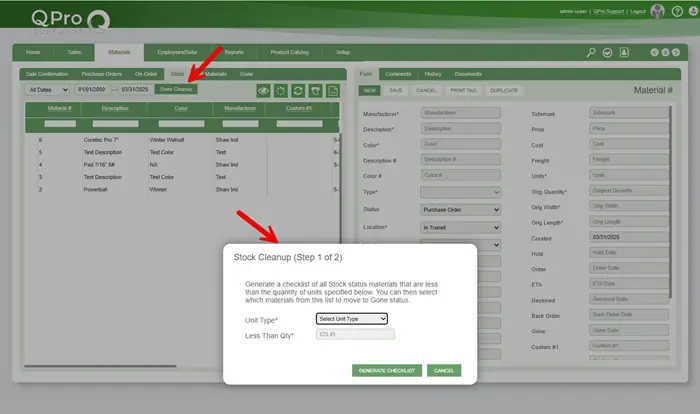
What It Does: Cleanup Stock helps you automatically move depleted materials from “Stock” to “Gone” status, keeping your inventory list clean and manageable. Since materials don’t automatically move to Gone when depleted, we recommend running this procedure 1-2 times monthly.
Requirements for Materials to Move to Gone:
- Physical balance must be less than or equal to the quantity you specify.
- All sale lines with reserved materials must be job costed (Delivered status).
Important Notes:
- The feature processes materials throughout the entire Stock list that have a Price Unit matching your selection.
- Changes apply across all locations, regardless of location filters.
How to Use Cleanup Stock:
- Go to Materials → Click on the Stock Tab, and click the “Stock Cleanup” button.
- Select “Unit Type” from the dropdown.
- Enter your desired quantity threshold in the LessThan Qty* field.
- Click “Generate Checklist”.
- Review the list. All items are checked by default.
- Uncheck any items you don’t want to be moved to “Gone”.
- Click “Move to Gone” to finalize the process.
- Run Stock Cleanup separately for each unit type (SqFt, SqYd, LnFt, Each).
Best Practice: Schedule a recurring task on your calendar for the 1st and 15th of each month to run the Stock Cleanup procedure. This regular maintenance ensures your inventory reports remain accurate and makes it easier to locate active materials when creating new sales orders.
Tip #2: Streamline Freight Updates with the Freight Tool
Need to update freight costs quickly? We’ve got you covered! Whether you’re standardizing costs across product lines or responding to changing freight rates, our enhanced Freight Tool makes bulk updates simple and efficient.
Where to Find It: The Freight Tool is under Setup → Click Product Catalog from the left-hand menu. Look for the “Freight Tool” button in the upper right corner of the Manufacturer section of the Product Catalog (see the red arrow in the image).
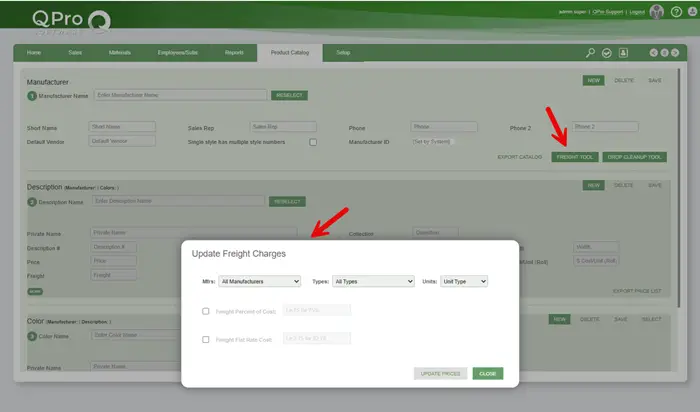
What It Does: The Freight Tool allows you to efficiently update freight charges across multiple products based on your selection criteria. The new “All Manufacturers” option saves you significant time by simultaneously updating freight costs across all manufacturers or a chosen manufacturer.
Available Options in the Update Freight Charges Window:
1. Manufacturer Selection:
- Choose “All Manufacturers” to apply freight charges across all manufacturers.
- Or select a specific manufacturer from the dropdown.
2. Types Filter:
- Choose “All Types” option to apply across all product types.
- Or select a specific product type from the dropdown.
3. Units Selection:
- Choose a specific unit type (SqFt, SqYd, LnFt, Each, etc.).
- Changes will only apply to products with the selected unit type.
4. Freight Calculation Methods:
- Freight Percent of Cost: Enter a percentage value (example: 75 for 75%).
- Freight Flat Rate Cost: Enter a specific dollar amount (example: 2.75 for $2.75).
- Select either option by checking the appropriate box.
5. Action Buttons:
- “UPDATE PRICES” to run the tool and update your prices.
- “CLOSE” to exit without making changes.
Best Practice: Use this tool to quickly standardize freight costs across product lines by manufacturer or make bulk updates when freight rates change.
Keeping your QPro system optimized doesn’t have to be complicated. The Stock Cleanup and Freight tools are just two examples of how QPro helps streamline your operations with minimal effort. By incorporating these quick maintenance procedures into your regular workflow, you’ll maintain cleaner inventory records and more accurate freight costs across your product catalog.
Have questions about these features or need additional assistance? Our support team is always ready to help you get the most out of QPro.